Bitlocker Key Recovery
Introduction
BitLocker is an encryption feature in Windows that AGE uses for the encryption of drives on the system, as a layer of security. With traditionally unencrypted disks (the vast majority of the world’s computers), attackers could extract all of the data available on the local disk. This can be done by simply docking the system’s HDD onto another computer to browse the file system or by running a live distro of Linux\WinPE where the data would be in clear text. Not only is the local data on an unencrypted disk at risk, but other sensitive data like password hashes could also be recovered and used for other malicious purposes.
Therefore, drive encryption is an integral part of good security and we require it.
TPM
The “Trusted Protection Module” is a microchip that comes built-into most laptops and desktops ordered today. It provides a way of creating and encrypting keys that could be used for BitLocker and for other security related features. With TPM & BitLocker, the system would automatically decrypt the PC on startup, without requiring the use of a pin, usb, or other form of authentication.
Problems
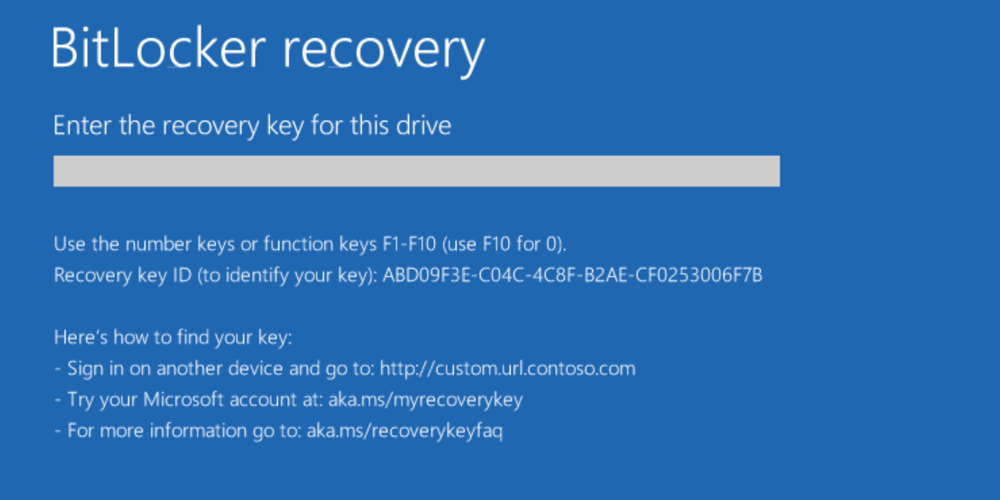
One of the challenges with TPM and Bitlocker is that if there is a problem or for some reason the device thinks there is an unauthorized attempt to access the encrypted drive, it will lock the device and request the Bitlocker recovery key.
Solution
Luckily we store these keys in Microsoft 365 and you can access them.
- On a different device go to: https://myaccount.azure.us/device-list
- Choose the device that is giving you the bitlocker prompt and click on View Bitlocker Keys
- Select Show recovery key from the flyout panel on the right. Type the key into the Bitlocker recovery field and you should be good to go.
If your device continues to prompt for the Bitlocker recovery key when you reboot. Try removing all peripherals and booting it again. Sometimes Bitlocker sees a peripheral as something shady so it prompts for the key.
Related Articles
How do I find my PIV ID?
Background The U.S. Federal government leverages Personal Identity Verification (PIV) identity cards for its employees and contractors. The Department of Defense (DoD) implements PIV through Common Access Cards (CACs). These cards hold digital ...How to Setup a New AGE Computer
Preface First things first, Microsoft loves to change the Windows first run process so these instructions may not be exactly inline with your experience. Nevertheless, do your best and push forward. The key is to get the device enrolled using your ...