Instructions
Prerequisites
- Device running iOS 18.0 and later.
- Install Company Portal app from App Store.
- Maintain a Wi-Fi connection until all steps are complete.
- Have access to Safari web browser on your device.
Enroll your iOS device
Pausing for more than a few minutes during enrollment might cause the Company Portal app to close or end setup. If this happens, reopen the app and try again.
Open the Company Portal app and sign in with your @age.solutions account.
When prompted to receive Company Portal notifications, tap Allow. Company Portal uses notifications to alert you if, for example, your device settings need to be updated.
On the Set up AGE screen, select Begin.
Secure the device
- On the Device management and privacy screen, read through the list of device information your organization can and can't see. Then tap Continue.
Important
These next steps and screens will differ depending on your iOS version. Follow the steps for your iOS version.
Safari opens the Company Portal website on your device. When prompted to download the configuration profile, tap Allow. If you're on a device running:
- iOS 18 and later: When the download is complete, tap Close. Then continue to step 3.
If you accidentally tap Ignore, refresh the page. You'll be prompted to open the Company Portal app. Once you're there, tap Download again.
Note
You must install the management profile as described in the next steps within 8 minutes of downloading it. If you don't, the profile will be removed and you'll have to restart enrollment.
When prompted to open Company Portal, tap Open. Read through the information on the How to install Management Profile screen.
Go to the Settings app and tap Enroll in < organization name > or Profile Downloaded.
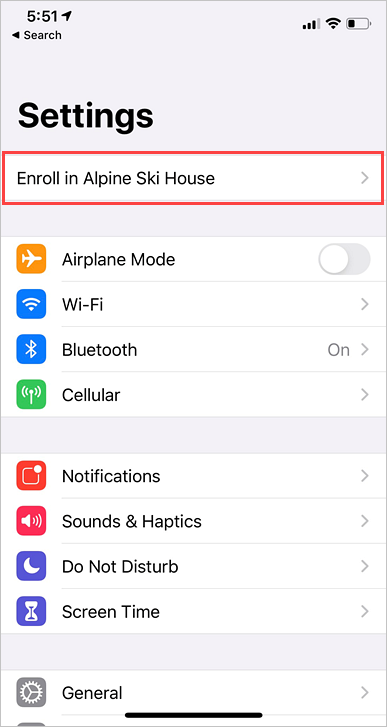
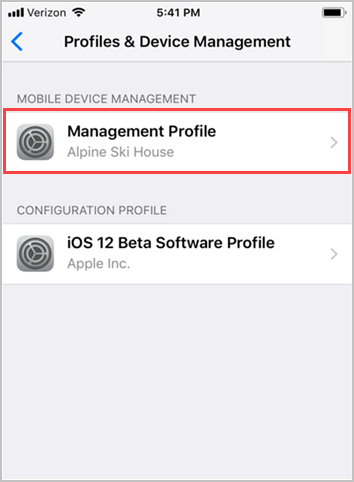
If neither options appear, go to General > Profiles & Device Management> Management Profile. If you still don't see a management profile, you may need to download it again.
Tap Install.
Enter your device password. Then tap Install.
The next screen is a standard system warning about device management. To continue with installation, tap Install. If prompted to trust remote management, tap Trust.
After installation is complete, tap Done. To verify that the profile was installed, go to the Profiles & Device Management settings. You should see the profile listed under Mobile Device Management.
Return to the Company Portal app. Company Portal will begin to sync and set up your device. Company Portal might prompt you to update additional device settings. If it does, tap Continue.
You'll know that setup is complete when all items in the list show a green checkmark. Tap Done.
Use the Company Portal App to browse and install available Applications e.g., Microsoft Teams and Outlook for Mobile.